Step 2 - Issue a Partial or Complete Refund
Important: A refund cannot be reversed. If you accidentally refund too much money, you have a small window of time in which you can cancel the refund in the Stripe console, but the refund will still show in the booking system and it gets a bit messy. Be careful.**
Before issuing a refund, review your refund policy to ensure that you are issuing the correct refund. If the customer is not entitled to a refund, skip this section.
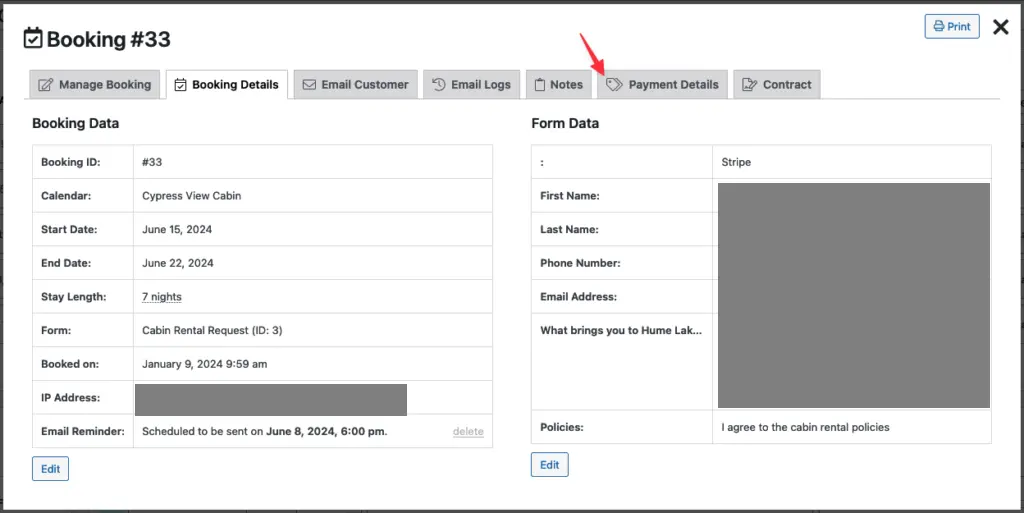
When viewing the booking details, click the Payment Details tab. Note the total amount paid and any refunds that are already completed:
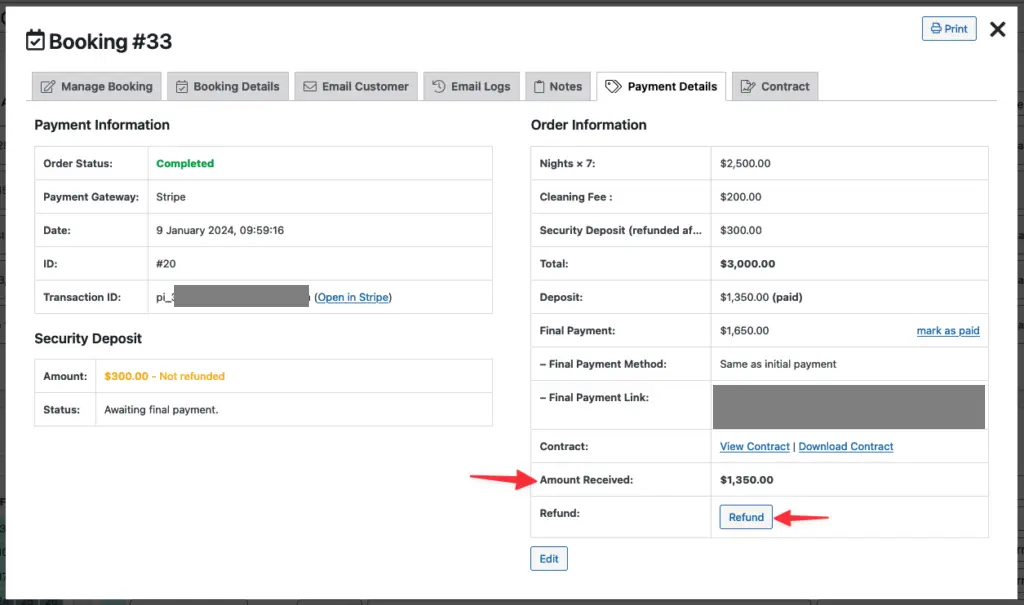
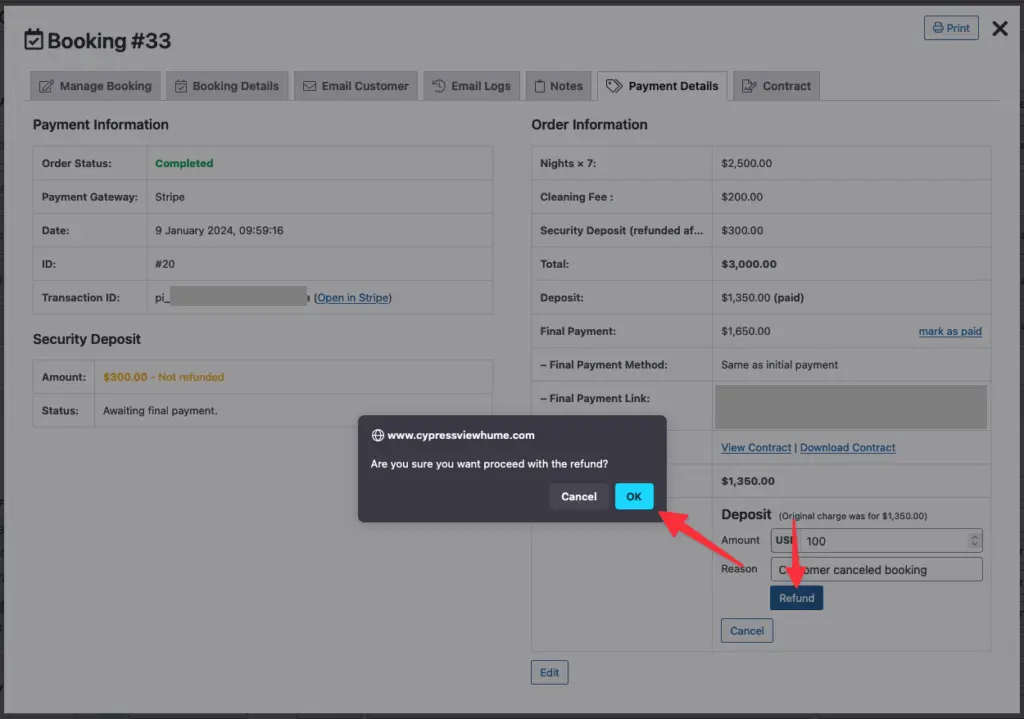
Click the Refund button and enter the dollar amount for the refund and a brief note describing the reason for the refund:
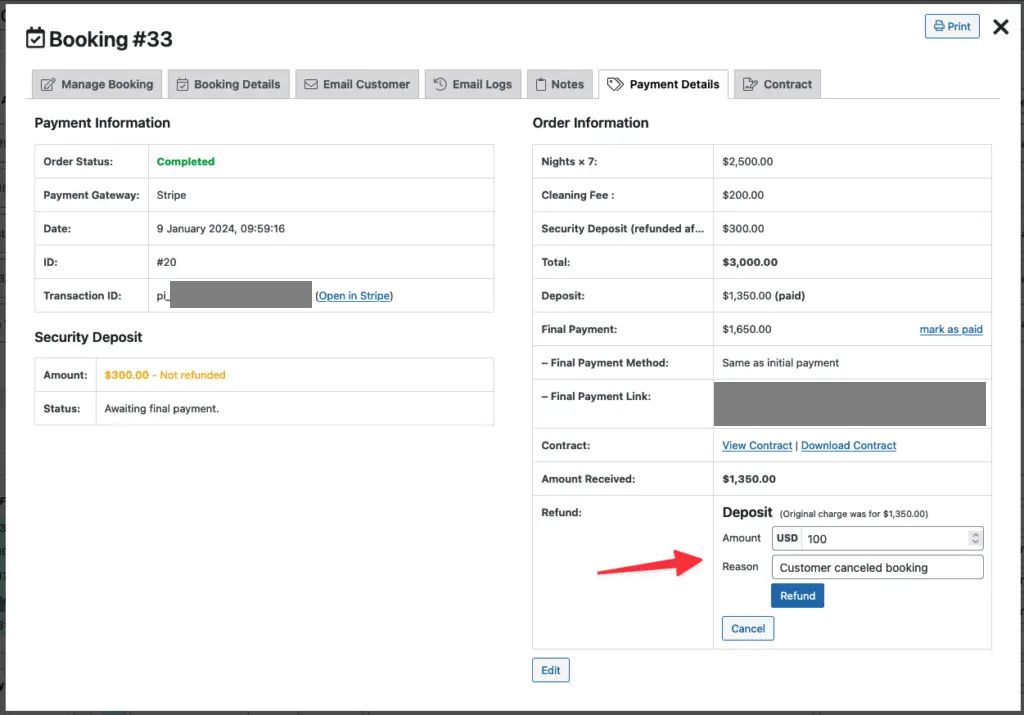
To complete the refund, click the Refund button and then click Ok in the confirmation prompt:
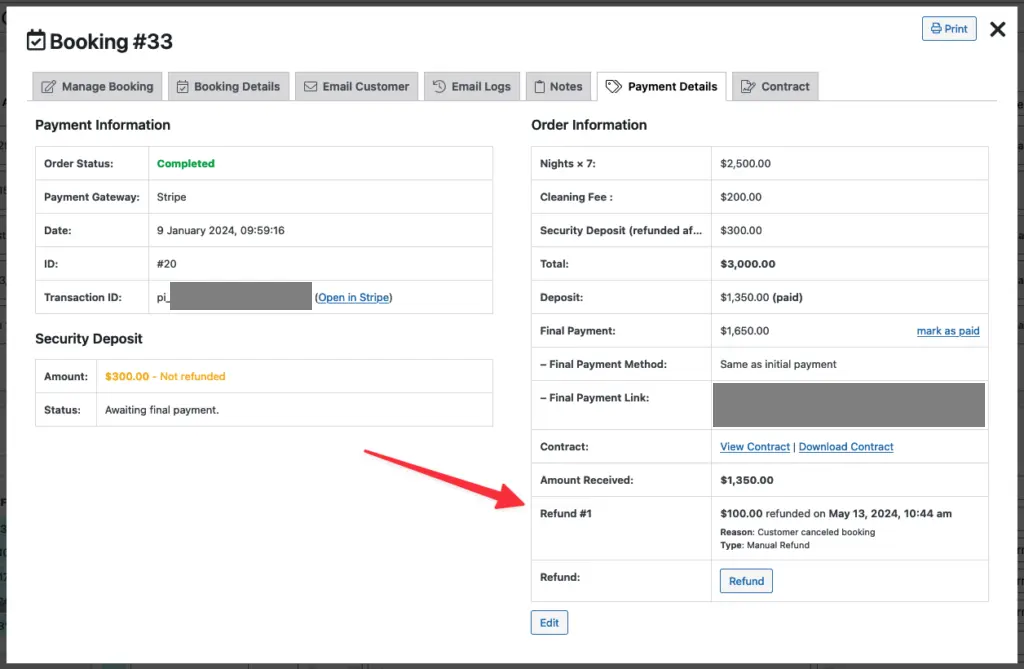
When the refund is complete, it will be listed in the bottom-right corner of the payments tab: